
Getting Started
Account & Artist Setup
Configure Dynamoi organizations, artist workspaces, roles, billing scope, platform connections, and multi-artist access.
Dynamoi separates account identity, organizations, and artist workspaces so each project can have its own campaigns, connections, billing state, and reporting.
Account structure
| Level | Purpose |
|---|---|
| User account | Your sign-in identity, preferences, and connected-app authorizations. |
| Organization | A business or team that can group multiple artists under one shared membership list. |
| Artist | The operational workspace for campaigns, platform connections, credit, billing, analytics, catalog data, and distribution access. |
An artist can be standalone or belong to an organization. Organization membership applies the same role across every artist in that organization. A standalone artist has its own artist-specific team table.
Add another artist
Open the artist switcher at the top of the sidebar and select Add artist. Enter the artist name and, when the dialog offers the choice, select an existing organization or create a new one.
Standard organizations can contain up to 10 artists. A newly created artist has its own onboarding state and must complete its own applicable platform and managed-advertising setup.
Artist settings
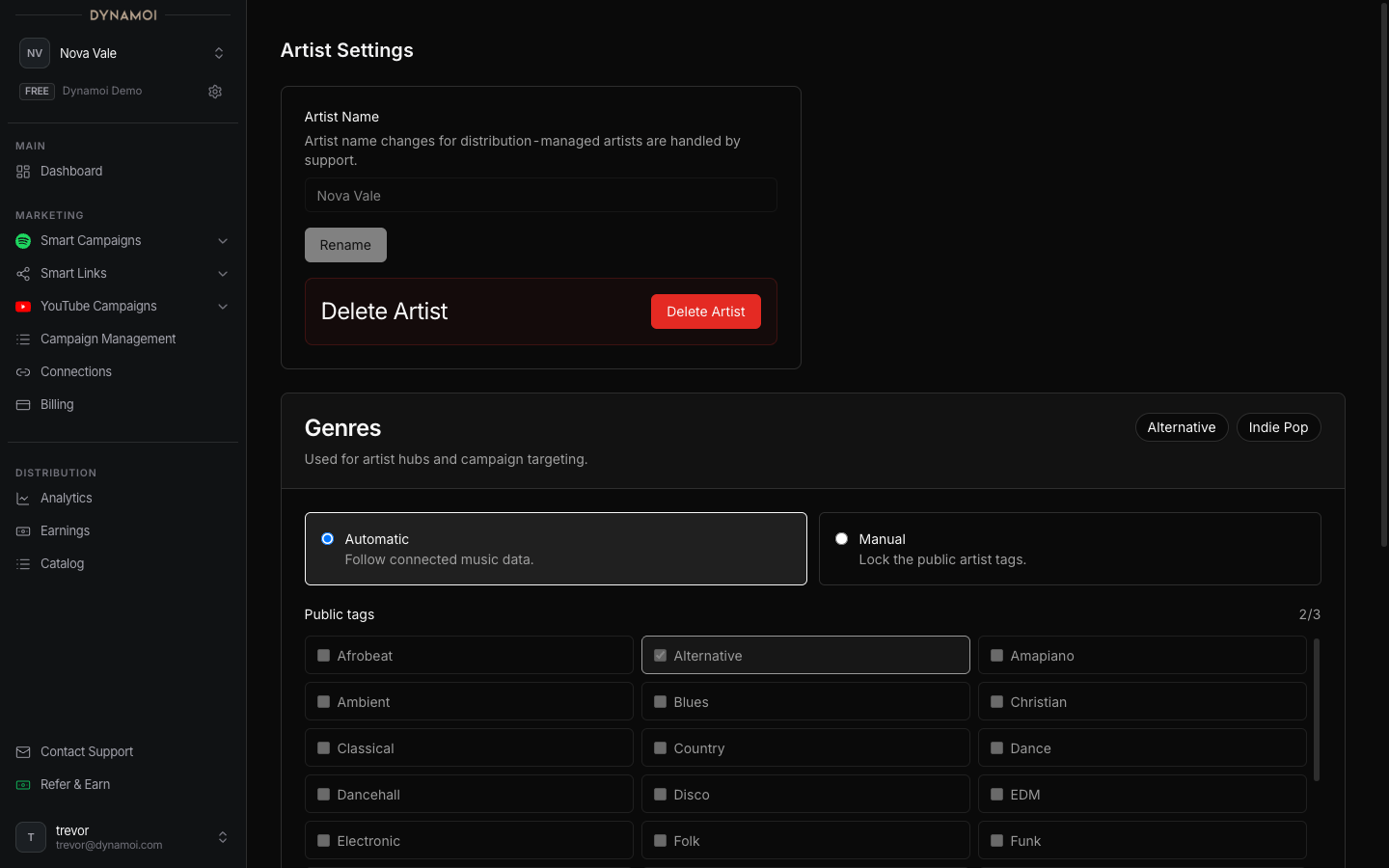
Select Artist Settings directly in the sidebar. The current page lets an authorized user:
- Rename the artist using a 1-to-100-character name
- Choose automatic or manual public genres, up to three tags
- Open organization access management or manage a standalone artist's team
- Review the artist audit log
There is no editable profile-image field on the current Artist Settings page. Artwork and avatars shown elsewhere generally come from connected platform data.
See Artist Settings for validation rules and the complete page contract.
Roles
| Role | Effective access |
|---|---|
| Admin | Full access, including admin membership management. |
| Editor | Full operational access and team management for editors and viewers, but not admins. |
| Viewer | Read-only access; cannot mutate campaigns, billing, connections, artist settings, or membership. |
Invitations default to Viewer and expire after 7 days. For organization artists, manage invitations in Organization Settings. For standalone artists, use the Team access card in Artist Settings.
Artist-scoped data
Switching artists changes the active:
- Campaigns and campaign drafts
- Smart Links and synced catalog
- Platform connection status
- Managed-advertising subscription and campaign credit
- Usage, invoices, and reporting
- Distribution permissions and royalty data
Use the artist switcher to move between every artist your account can access, including artists from different organizations.
User and connected-app settings
Open the user menu in the dashboard header and select Settings for account-level preferences. Connected Apps shows OAuth and MCP authorizations and lets you revoke supported app access. Login-email or account-identity changes are not advertised as self-service controls; contact support when an identity change is required.