
YouTube Campaigns
Creating a YouTube Campaign
Create a managed YouTube Campaign by choosing a current strategy, selecting videos and playlists, targeting countries, adding copy, and setting a valid budget.
Use Create YouTube Campaign to prepare managed Google Ads promotion for videos on the connected artist channel.
Before you start
Verify these prerequisites:
| Requirement | Where to check |
|---|---|
| YouTube connected | Account → Platform Connections |
| Dynamoi Google Ads link accepted | YouTube Studio |
| Managed advertising active | Account → Billing |
| Videos available on the connected channel | Marketing → YouTube Campaigns → YouTube Video Library |
Warning Connecting YouTube does not automatically accept the advertising link. Complete the link approval in YouTube Studio before launch.
Create the campaign
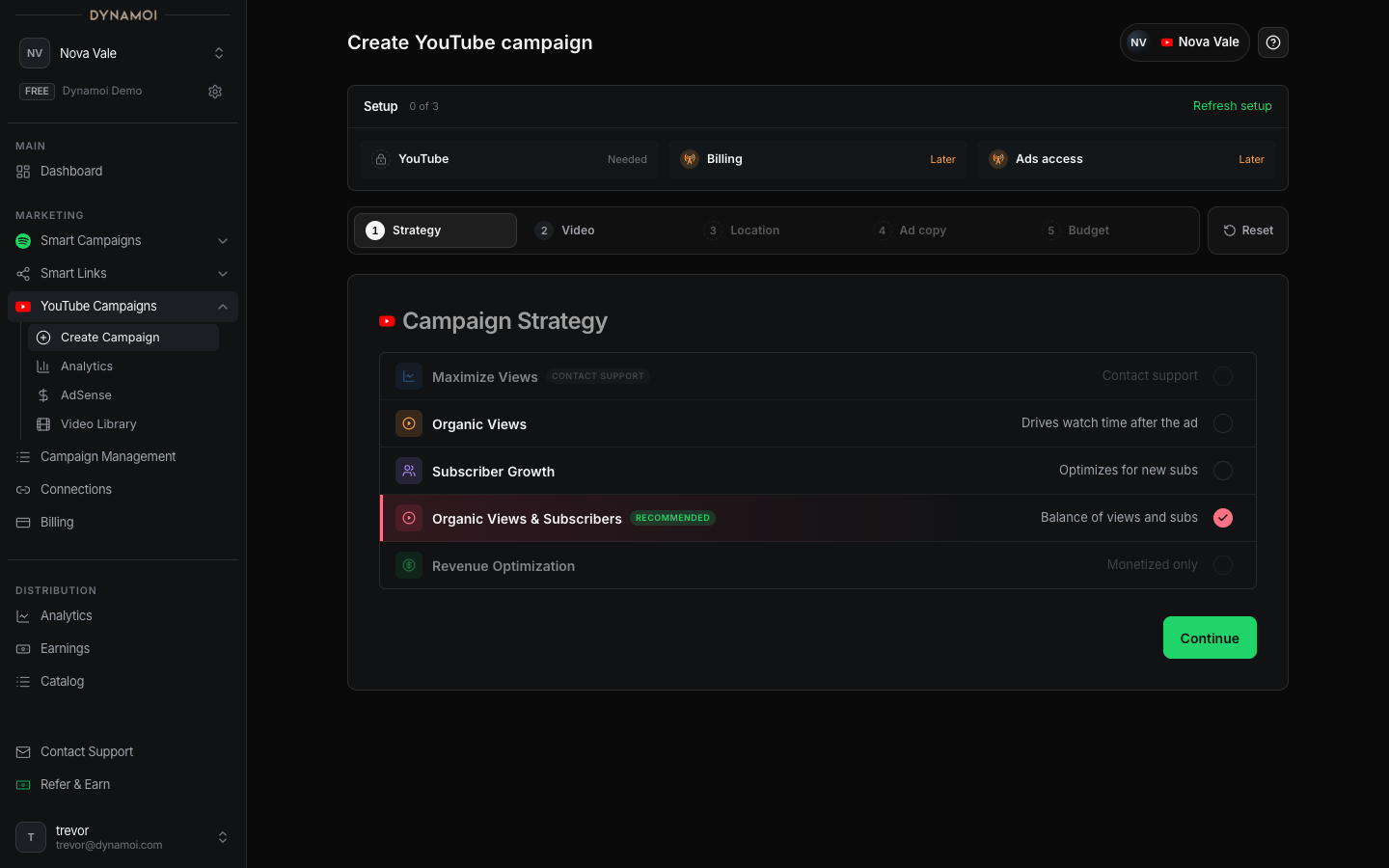
Open Create YouTube Campaign In the artist dashboard, open
Marketing, expandYouTube Campaigns, and selectCreate YouTube Campaign.Choose a strategy Select
Maximize Views,Organic Views,Subscriber Growth,Organic Views & Subscribers, orRevenue Optimization. Revenue Optimization is available only when the connected channel is detected as monetized.Select campaign content Paste an eligible YouTube URL or choose content from the YouTube Video Library. Maximize Views accepts one video without a playlist. Every other strategy requires a playlist destination and can include up to 10 promoted video-and-playlist selections.
Choose the primary destination For a multi-video campaign, the first selection is primary and its playlist title names the campaign. Use
Make primaryto reorder the campaign identity before launch.Choose locations Use worldwide delivery or select the countries where Google Ads may serve. The campaign creator validates supported country targets; selecting a country does not guarantee delivery there.
Add ad copy Enter one ad-copy description or use the available AI-writing control. Review generated copy before saving it because you remain responsible for accuracy and policy compliance.
Set the budget and duration Maximize Views uses a fixed total budget. Other strategies can use a daily or total budget. Daily budgets must be $10–$100. Total budgets must be at least $75, span at least 5 full Google Ads account days, and average at least $10 per day.
Review and launch Confirm the selected videos, playlists, strategy, locations, copy, budget, and end date. Launch submits the campaign for Dynamoi validation and provider deployment; it does not guarantee approval or delivery.
Strategy-specific content rules
| Strategy | Videos per campaign | Playlist required | Budget behavior |
|---|---|---|---|
| Maximize Views | 1 | No | Total budget only; fixed flight |
| Organic Views | Up to 10 | Yes, for each selection | Daily or total |
| Subscriber Growth | Up to 10 | Yes, for each selection | Daily or total |
| Organic Views & Subscribers | Up to 10 | Yes, for each selection | Daily or total |
| Revenue Optimization | Up to 10 | Yes, for each selection | Daily or total; monetized channel required |
The same video can be represented by a specific playlist destination. Campaign setup validates the connected channel, video identity, playlist relationship, and content-screening result.
URL support
The creator accepts common YouTube video formats, including standard watch URLs, youtu.be links, and Shorts URLs. For playlist-required strategies, you can paste a watch URL containing a playlist or select a validated playlist candidate in the form.
A video-only URL is sufficient for Maximize Views. For other strategies, saving content remains incomplete until a valid playlist is selected.
What happens after launch
The dashboard uses user-facing lifecycle labels rather than exposing every internal processing state:
| Label | Meaning |
|---|---|
| Preparing | Dynamoi is assembling required campaign data or Smart Link dependencies |
| In review | Content and setup validation are still in progress |
| Deploying | Dynamoi is creating or reconciling provider resources |
| Under review | The campaign is waiting on final readiness or provider review |
| Active | Provider delivery is enabled, subject to auction availability and policy |
| Paused | Delivery is paused or a pause is being processed |
| Ended | The campaign reached its end date or completed its fixed flight |
| Issue | Deployment or validation needs attention |
A campaign younger than seven days can display a Learning badge while it is Active or Deploying. This badge is based on campaign age; it is not a promise that optimization finishes on a specific day.
Maximize Views lifecycle limits
Maximize Views uses a Google Video fixed-flight workflow:
- Pause requests are queued and the dashboard can show a pending action while the remote script processes them.
- Self-serve resume is currently blocked because the remote runner cannot yet re-check billing authority at execution time.
- Budget, end date, locations, strategy, and optimization settings cannot be edited after launch.
- Create a new campaign when a completed fixed flight needs a different budget, targeting plan, or strategy.
Troubleshooting
| Issue | Check |
|---|---|
| YouTube content is unavailable | Confirm the selected Google account can access the connected channel and the video is eligible for retrieval |
| Playlist cannot be saved | Confirm the selected video belongs to that playlist and the selected strategy requires playlists |
| Campaign remains in review or deployment | Review the campaign's Issue text, YouTube connection, Google Ads link, billing state, and provider-policy status |
| No recent analytics | Allow for Google Ads and YouTube reporting delay; inspect the data-status and freshness notices |
| Launch is blocked | Resolve the exact readiness item shown by the creator instead of repeatedly submitting the same draft |
See Connecting YouTube and Troubleshooting Campaign Statuses for additional checks.