Music Catalog & Releases
Import your Spotify catalog, sync new releases, add missing singles, albums, or Spotify and Apple Music playlists by link, and launch Smart Campaigns.
Your artist music catalog lives inside Marketing > Smart Links > All Links (there is no separate Music Catalog sidebar item). Dynamoi imports your releases from Spotify so every single, EP, album, and added playlist gets a free streamit.fm Smart Link, and eligible Spotify releases and playlists can open a prefilled Smart Campaign draft to review and submit (Apple Music-only playlists are not eligible for Smart Campaigns). Free on every plan, scoped per artist.
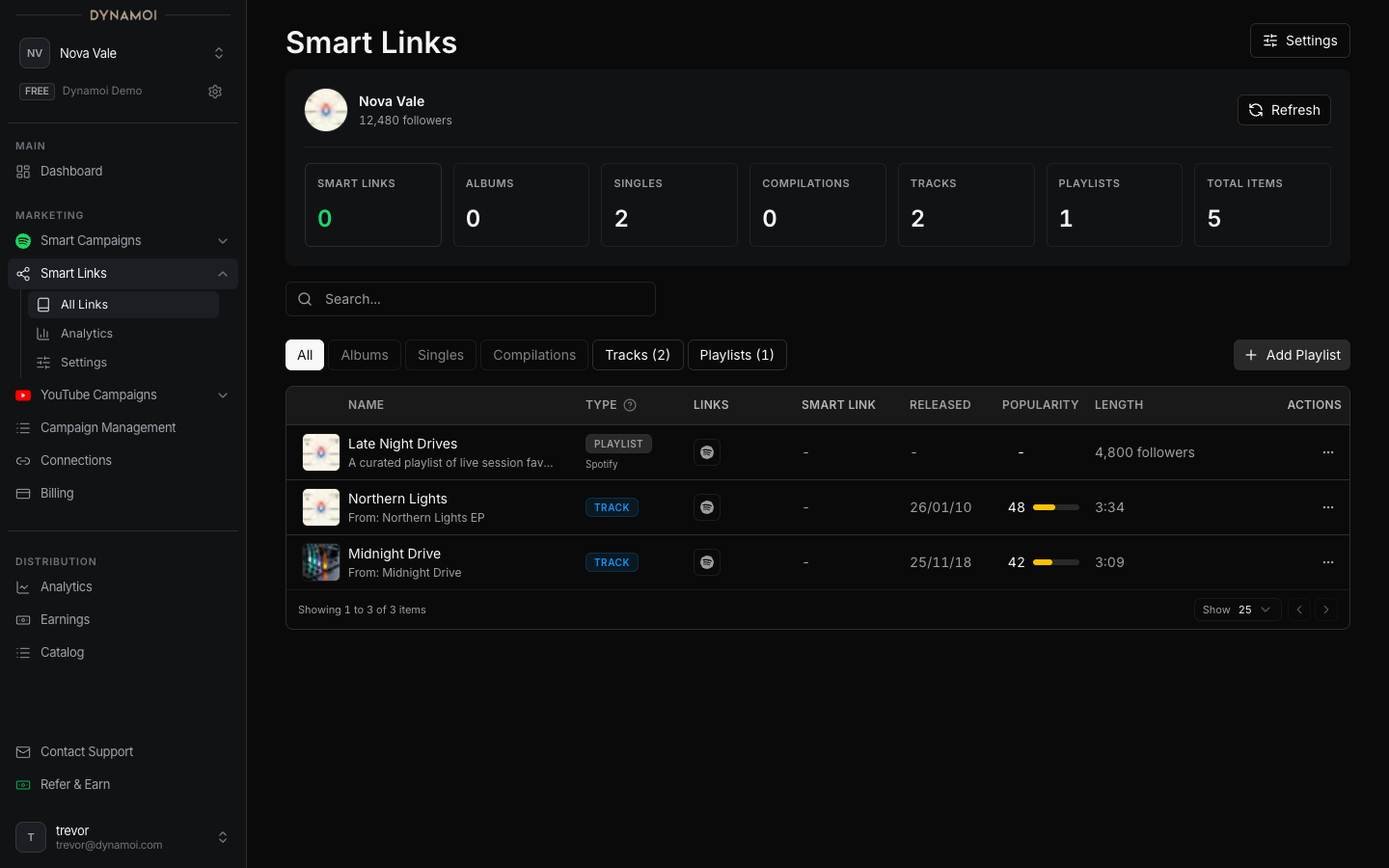
Import or connect your Spotify catalog
- Connected Spotify profile (recommended): Connect Spotify in Account > Connections (Connecting Spotify) to keep releases synced and enable Smart Campaigns.
- Quick import without connecting first: If Spotify is not yet connected, All Links displays a Spotify catalog panel. Paste your Spotify artist profile URL and select Import Catalog to pull in your public releases and build free Smart Links immediately.
Browse and filter your catalog
- Switch tabs across All, Albums, Singles, Compilations, Tracks, Playlists, and Smart Links.
- Filter by title with Search catalog... and clear active filters with Reset filters.
- Open row actions (Open Smart Link, Copy Share Link, Share Kit, Manage Music Services, Edit Description, Smart Link Video, and more — see Smart Links Overview).
- Open a prefilled Smart Campaign draft from any eligible Spotify item with Promote this release or Promote this playlist, then complete and submit the form.
Keep your catalog up to date
| Control | What it does |
|---|---|
| Sync Releases | Checks Spotify for newly published releases added since your last sync |
| Missing a release? | Adds a single missing Spotify album, single, or EP directly by URL |
| Add Playlist | Adds a Spotify or Apple Music playlist by URL with its own Smart Link |
Newly synced or added items take a short moment to process before their Smart Link turns Live. To fix a mismatched store URL on any existing release, select Manage Music Services on that row.
Add a missing release by link
Open Missing a release? In Marketing > Smart Links > All Links, select Missing a release? (it may also highlight a recent release that has not synced yet).
Paste the Spotify release URL Paste the Spotify album, single, or EP link and select Add release.
Wait for the Smart Link to build Dynamoi confirms with
Release added. Its Smart Link is being prepared.
Release import error messages
| Exact error message | How to resolve it |
|---|---|
That doesn't look like a Spotify link. Paste the link to the release. |
Re-copy the share URL directly from Spotify and paste it again. |
Paste the Spotify link to an album, single, or EP, not a track or an artist. |
Open the release page on Spotify (single, EP, or album) rather than an individual track or artist profile link. |
Connect this artist to Spotify before adding a release. |
Connect the artist's Spotify profile under Account > Connections. |
This release is already in your catalog. |
Search for the release in All Links (reset any active tab or filter first). |
You've added several releases recently. Please try again in a little while. |
Wait briefly for the rate limit to clear, then retry. |
Spotify lists a different artist first on this release, so it can't be added to this profile. |
Add the release from the workspace belonging to the primary (first-listed) Spotify artist. |
This release is already claimed by another Dynamoi account. |
Contact our team via Support in the dashboard or support@dynamoi.com. |
Add or remove a playlist
Select Add Playlist In All Links, choose Add Playlist and paste a public Spotify or Apple Music playlist link to load a preview.
Confirm the playlist Select Add. The playlist appears under the Playlists tab with its own
streamit.fmSmart Link.
To delete a manually added playlist with no campaign history, open its row menu and select Remove from Catalog. Playlists that already have campaign history show Used in campaigns (disabled) and cannot be removed.
Note You can publish and share Smart Links for both Spotify and Apple Music playlists, but Smart Campaigns require Spotify content. Add the Spotify version of a playlist when you plan to promote it with ads.
AI agent & CLI access
Available via the Dynamoi MCP server (dynamoi_create_smart_links_from_spotify_artist, dynamoi_create_smart_link_from_spotify, dynamoi_smart_link_controls — directory & full profiles) and the dynamoi CLI. Adding playlist Smart Links remains dashboard-only.