
Account Settings
Connected Apps
Review and revoke OAuth applications, including ChatGPT and other MCP clients, that can access your Dynamoi account.
Connected Apps lists external applications authorized to act through your Dynamoi account, including ChatGPT and other MCP-compatible assistants.
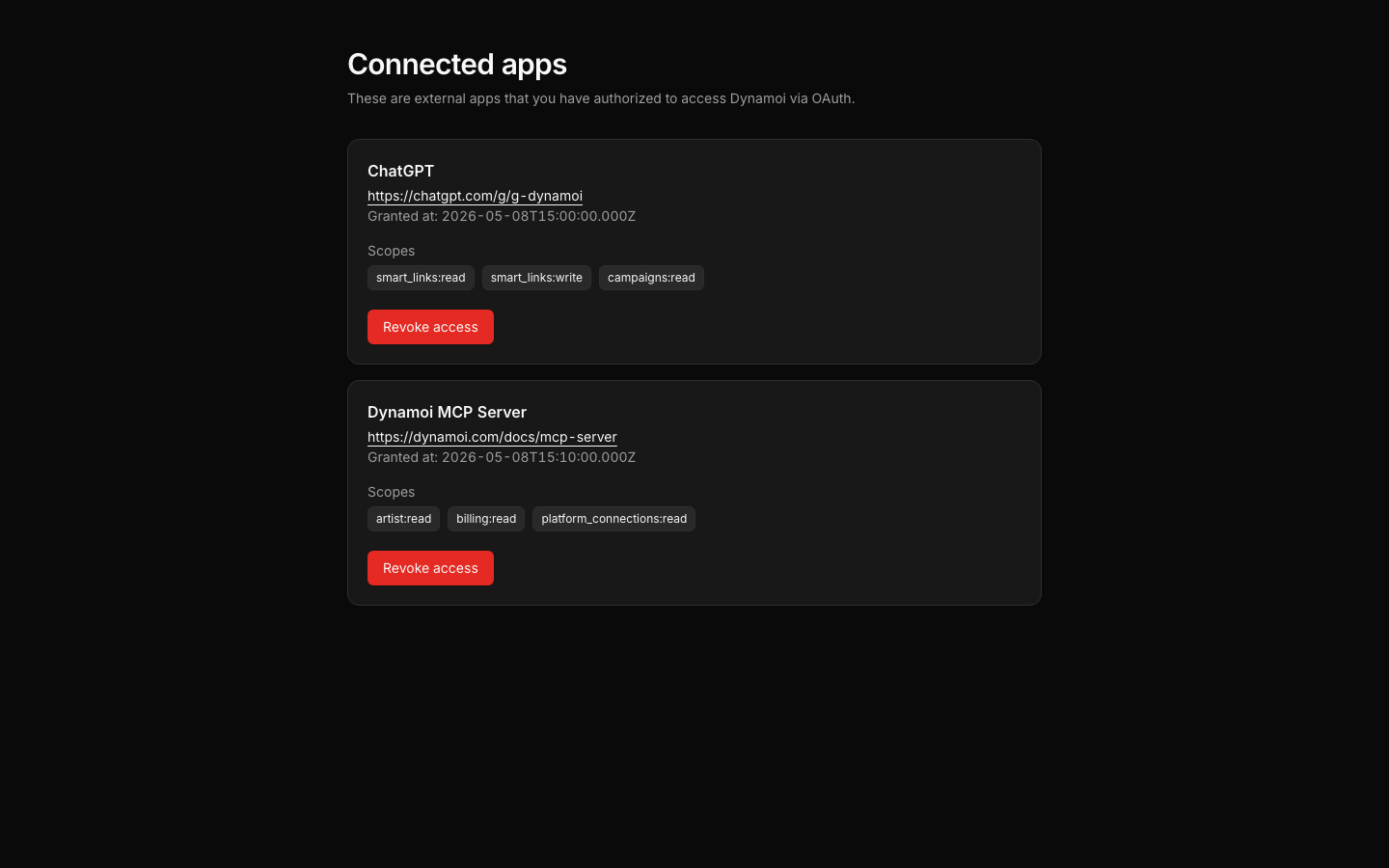
Accessing Connected Apps
Open User Settings > Connected Apps. Authorizations are account-scoped rather than artist-scoped, so one connection can be used across artists that your user is allowed to access.
What an authorization contains
A connected-app record can include:
- The client or application name
- The connection type
- When access was granted
- Whether access is active
- A disconnect action when revocation is supported
The connected application receives only the permissions granted through the OAuth flow. Dynamoi still applies the signed-in user's artist, organization, role, and mutation permissions to protected tools.
ChatGPT and MCP
See Dynamoi in ChatGPT and MCP for setup and the current tool boundary. The published ChatGPT app and agent-directory listings use the directory profile of Dynamoi tools. Other signed-in MCP clients, such as Claude, Claude Code, or Cursor, get the full profile after OAuth, including campaign launch, budget, platform-linking, and Shop checkout workflows that the directory profile does not receive.
Smart Link creation through MCP currently supports artist and release links. Playlist Smart Links remain a dashboard workflow.
Disconnecting an app
Disconnect an app when you no longer use it, connected it only for testing, or need to force a new authorization. After revocation, the client must complete OAuth again before it can call protected Dynamoi tools.
Warning Disconnecting an app revokes that OAuth authorization. It does not delete artists, campaigns, Smart Links, analytics, or other Dynamoi data.