Platform Connections
Connecting YouTube
Authorize a YouTube channel and approve the Google Ads link required for Dynamoi-managed YouTube Campaigns.
YouTube Campaigns require both a connected YouTube channel and an active Google Ads link to Dynamoi's managed advertising infrastructure.
Before connecting
You need access to the Google account that owns or manages the intended channel. Standard accounts can see Activate billing before Connect; promotional or marketplace arrangements can follow a different billing gate.
Connecting the channel does not automatically approve the Google Ads relationship. That approval happens separately in YouTube Studio.
Connect the channel
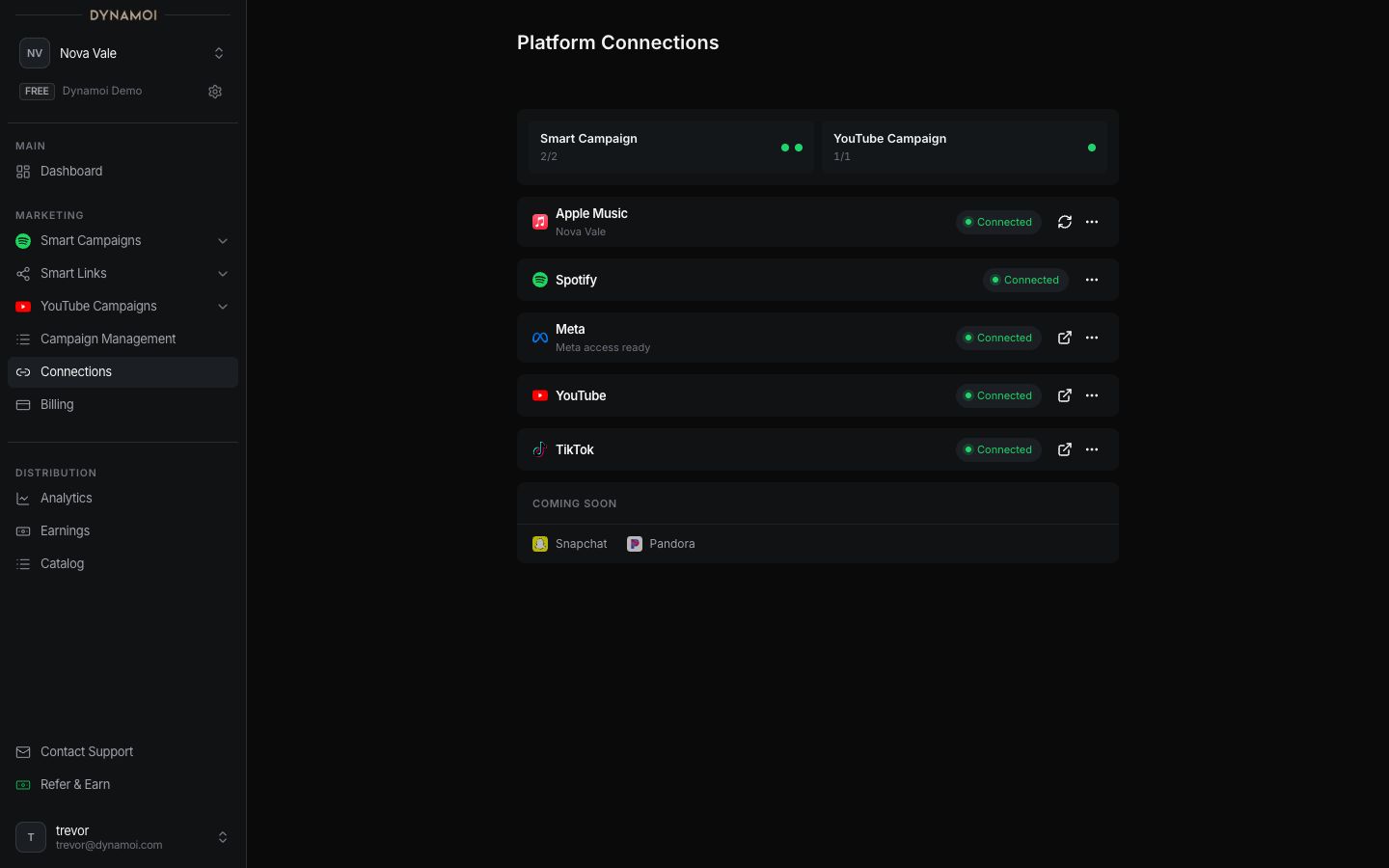
Open Platform Connections Select Platform Connections in the Account section of the sidebar.
Start YouTube authorization Select
Connectbeside YouTube and complete the Google OAuth flow.Select the channel Choose the channel that belongs to the active Dynamoi artist.
Approve the Google Ads link Wait for Dynamoi to prepare the request. Open YouTube Studio when prompted, approve the link, then return to Dynamoi and confirm.
State guide
| State | Meaning |
|---|---|
Activate billing |
Standard managed advertising is not yet launchable for the artist. |
Select your channel |
Google authorization succeeded but a channel still needs selection. |
Preparing your Google Ads request |
Dynamoi is creating or reconciling the link request. |
Approve the Google Ads link in YouTube Studio |
Finish the external approval and return to confirm it. |
Connected |
The channel and required Ads link are active. |
After connection, use the YouTube Video Library to inspect selectable channel videos. A connected channel still needs eligible content, a valid strategy, locations, dates, budget, and provider review before delivery.