
Platform Connections
YouTube Connection
Complete YouTube channel selection, billing readiness, Google Ads link creation, and YouTube Studio approval.
The YouTube Connection page tracks the full relationship required for Dynamoi-managed YouTube advertising: Google authorization, channel selection, billing readiness, link-request preparation, and approval in YouTube Studio.
Open the flow
Select Connect beside YouTube in Platform Connections. When another action is required, Dynamoi opens or links to the YouTube Connection page.
Complete the relationship
Authorize YouTube Select
Connect with YouTube, sign in with the Google account that manages the intended channel, and approve the requested scopes.Select a channel Choose the channel that belongs to the active artist.
Resolve billing readiness If the page shows
Activate billing, start managed advertising for the artist. Promotional and marketplace artists can have a different gate.Wait for request preparation
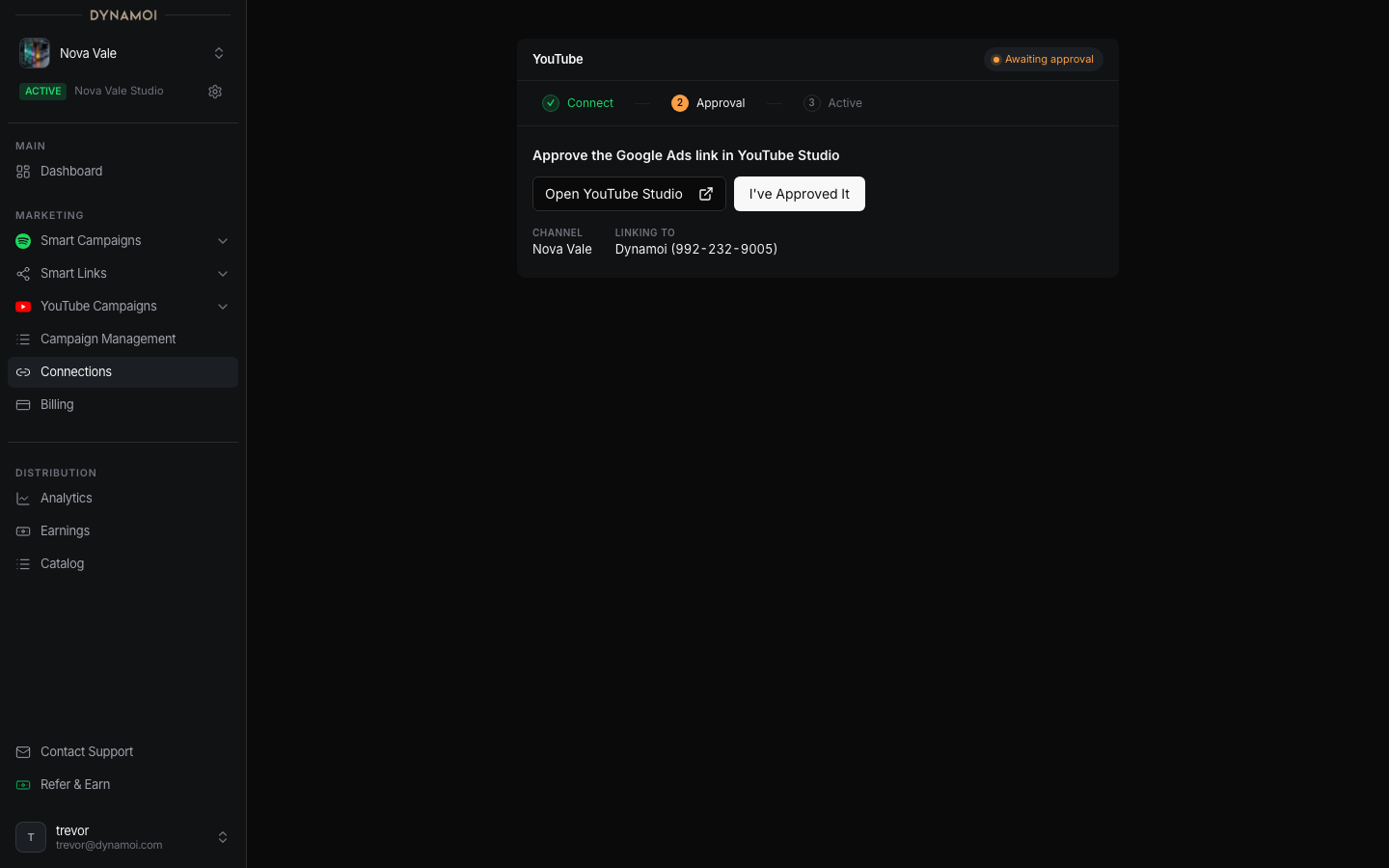
Preparing your Google Ads requestmeans Dynamoi is creating or reconciling the external link request.Approve in YouTube Studio Select
Open YouTube Studio, approve the Google Ads link shown for Dynamoi's managed advertising partner, then return to Dynamoi.Confirm approval Select
I've Approved It. The row becomesConnectedafter Dynamoi observes the active link.
Use the signed-in Dynamoi workflow to identify and approve the correct request. Do not rely on an account number copied from another source.
Status guide
| Status | Meaning |
|---|---|
Select your channel |
Choose the intended channel after authorization. |
Activate billing |
Standard managed advertising must be launchable to continue. |
Promo credits are active |
The artist can continue under a promotional or marketplace arrangement. |
Preparing your Google Ads request |
The link request is being prepared or reconciled. |
Approve the Google Ads link in YouTube Studio |
Complete the external approval, return, and confirm it. |
Connected |
The channel and required Ads link are active. |
If the flow becomes stale or errors, use the current Try Again or reset action instead of reconnecting a different channel unless the artist association was actually wrong.