
Getting Started
Dashboard Overview
Understand the current artist-scoped dashboard, campaign navigation, Smart Links, account controls, distribution routes, and settings.
The dashboard is scoped to the active artist and adapts to that artist's persona, onboarding state, access level, connected platforms, campaign drafts, billing state, and available data.
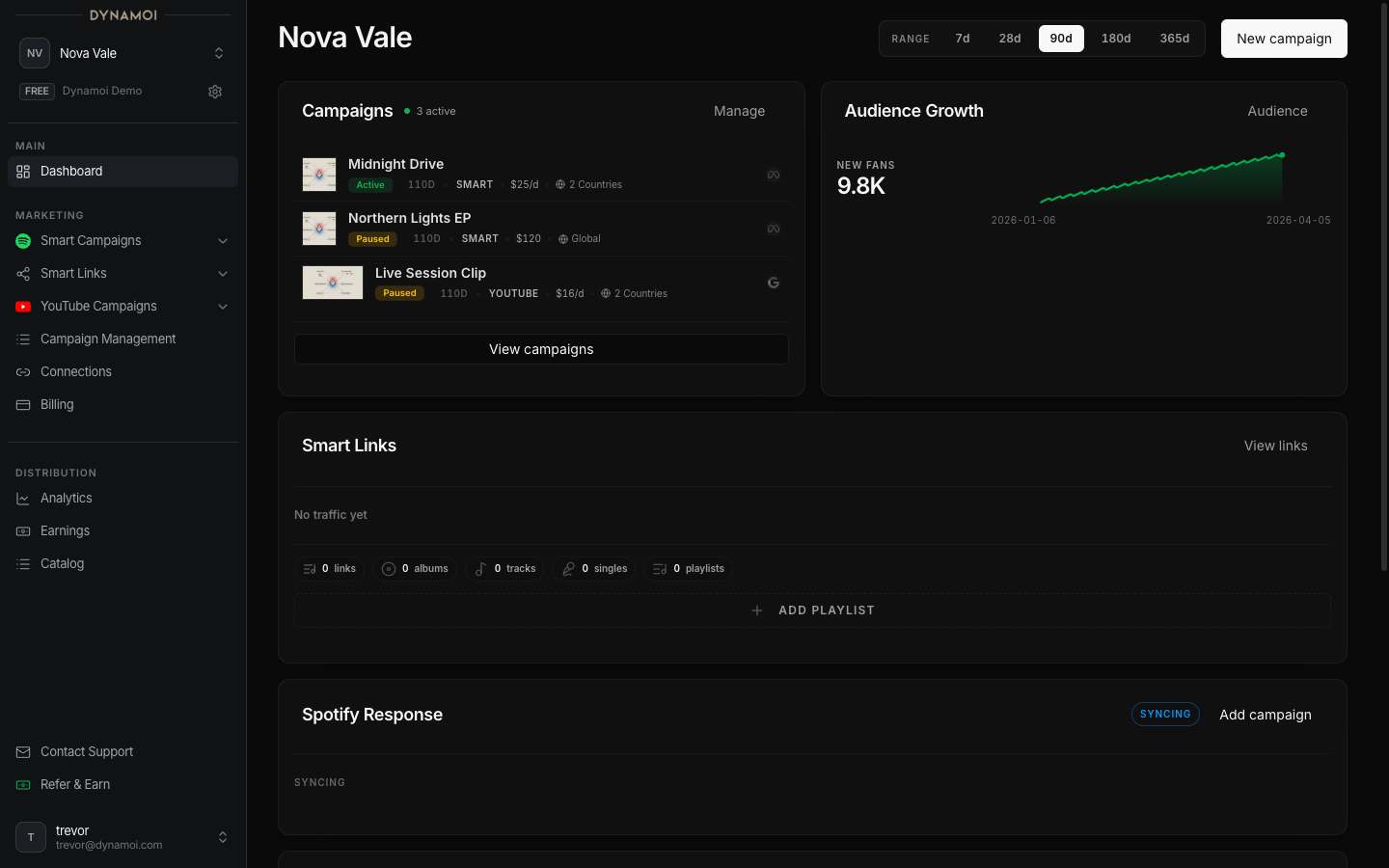
Primary navigation
The current sidebar is organized as follows:
- Dashboard opens the artist's configured landing surface.
- All Campaigns opens Campaign Management for every supported campaign type.
- Marketing contains:
- Smart Campaigns: Create Smart Campaign, Smart Campaign Analytics, and Audience
- YouTube Campaigns: Create YouTube Campaign, YouTube Analytics, AdSense Optimization, and YouTube Video Library
- Smart Links: All, Analytics, and Settings
- Playlists for eligible music and hybrid artists
- Account contains Platform Connections and Billing.
- Distribution changes with access:
- Catalog for enabled artists
- Submit New Release only for artists with distribution
manageaccess - Royalties for users with a royalty portfolio, with or without an active distribution artist
- Apply when distribution access is not yet enabled
- Artist Settings opens artist identity, genres, access, and audit history.
A confidently classified YouTube-only creator does not see Smart Campaigns or Playlists in the sidebar. Other personas retain those music surfaces.
Secondary navigation and user menu
The lower sidebar can include:
- Contact Support
- Refer and Earn, only when referrals are enabled for the account
Open the user menu in the dashboard header for Settings, Connected Apps, and sign-out controls.
Artist switcher
Select the active artist at the top of the sidebar to move between accessible artists, open Organization Settings when available, or add another artist when your role and quota permit it. Every switch changes the artist-scoped campaign, billing, connection, analytics, and distribution context.
Dashboard home
The home route is not a fixed report. It can show onboarding, an audit-first experience, campaign summaries, or artist-specific analytics depending on the available data.
Growth Audit and campaign entry points
An artist without campaign history can see a Growth Audit or campaign-start surface instead of a populated campaign summary. The available actions depend on whether Spotify or YouTube data has resolved and which setup blockers remain.
Spotify Response
For eligible music or hybrid artists, Spotify Response can combine monthly-listener trend, campaign deployment windows, market performance, playlist-reach trend, and top-playlist context. It follows the dashboard date range and displays an availability state when the required market data has not resolved.
Other conditional cards
YouTube, billing, campaign, and distribution cards appear only when the current artist has the relevant persona, connection, access, or data. Absence of a card does not necessarily indicate an error; use the corresponding sidebar route to check setup status.