
Platform Connections
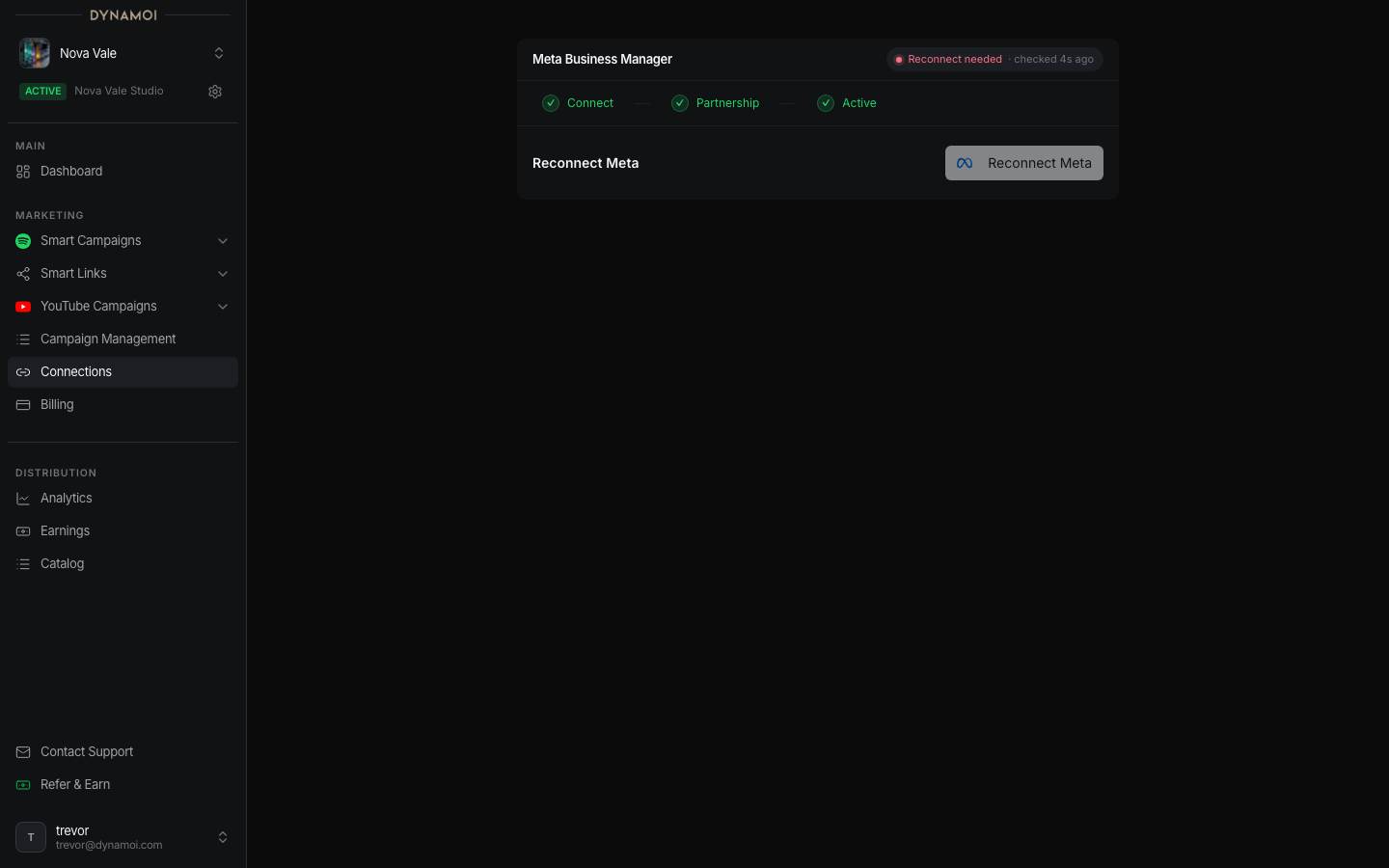
Meta Business Manager
Complete Meta Business Portfolio, Facebook Page, professional Instagram, and partnership approval for Smart Campaign delivery.
The Meta Business Manager step completes the asset partnership used by Dynamoi-managed Smart Campaign delivery. It follows Meta authorization and account selection; it is not a replacement for those earlier steps.
Before you start
Confirm that:
- The correct Facebook Page was selected in Platform Connections
- The Page has a connected Instagram Business or Creator account
- Both assets are in the same Meta Business Portfolio when requested
- Managed advertising is active when the page shows
Billing needed
Resolve a portfolio requirement
If the page shows Meta Business Portfolio required or Portfolio needed, add the selected Facebook Page and Instagram account to the same Meta Business Portfolio in Meta Business Settings. Return to Dynamoi and select Check Status after Meta shows both assets in the portfolio.
Approve Dynamoi's partnership
Meta account connected means Dynamoi resolved the Page and Instagram account. It does not mean the advertising partnership is active.
Open the request When available, select
View Requestfrom a desktop or laptop browser.Approve in Meta Business Manager Review the requested asset relationship and approve Dynamoi.
Confirm in Dynamoi Return to the connection page and select
I've Approved Itso Dynamoi can reconcile the provider state.
Status guide
| Status | Meaning |
|---|---|
Billing needed |
Managed advertising must be launchable before the partnership workflow continues. |
Portfolio needed |
The selected Page and Instagram account must be placed in the same Business Portfolio. |
Choose accounts |
Select the eligible Page and Instagram pair. |
Preparing request |
Dynamoi is preparing or reconciling the partnership. |
Approve access in Meta Business Manager |
Complete the external approval and return to confirm it. |
Meta access ready |
The approved asset partnership is active. |
Do not search Instagram for a separate shared-access switch unless the current Dynamoi prompt explicitly directs you there. Follow the Business Manager request linked from the connection page.